
Arcade Parlor is an adware program that displays pop-up ads that very often may have nothing to do with the web page content, quick-flash re-directs via commercial web pages and injects in-text ads when visiting certain sites such as Amazon.com, eBay.com, etc. It may display in-text ads on other websites as well. This is the price you pay for supposedly free games you get when you agree to install this adware program on your computer. Of course, its up to you to decide whether you want to keep it or not, but since it displays ads and collects information about your browsing habits I think you would be better off without it. Using this guide you will be able to easily remove all traces of the Arcade Parlor adware from your computer and browser.

Once installed, this adware will add browser add-ons to IE, Firefox and Chrome. These add-ons can access your data on all websites and access your tab browsing activity. Furthermore, the adware uses scheduled tasks run in the background to check for new updates. Scheduled tasks start every time that you start Windows and use system resources without your knowledge and permission. It may download and install additional adware on your computer.

Its very important that you pay attention to the license agreements and installation screens when installing anything; otherwise you can easily end up with Arcade Parlor and similar adware on your computer. If an installation screen offers you Custom or Advanced installation options, it is a good idea to select these as they will typically disclose what other 3rd party software will also be installed and allow you to opt out of them. If you cant seem to get rid of Arcade Parlor or you have additional questions, please leave a comment below. Good luck and be safe online!
Written by Michael Kaur, http://deletemalware.blogspot.com
Arcade Parlor removal instructions:
1. First of all, download recommended anti-malware software and run a full system scan. It will detect and remove this infection from your computer. You may then follow the manual removal instructions below to remove the leftover traces of this infection. Hopefully you wont have to do that.

2. Remove Arcade Parlor program from your computer using the Add/Remove Programs control panel (Windows XP) or Uninstall a program control panel (Windows 7 and Windows 8).
Go to the Start Menu. Select Control Panel → Add/Remove Programs.
If you are using Windows Vista or Windows 7, select Control Panel → Uninstall a Program.

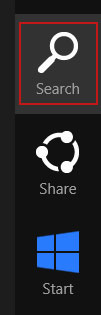
If you are using Windows 8, simply drag your mouse pointer to the right edge of the screen, select Search from the list and search for "control panel".
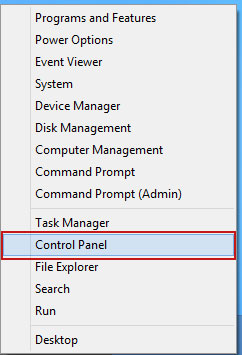
Or you can right-click on a bottom left hot corner (formerly known as the Start button) and select Control panel from there.
3. When the Add/Remove Programs or the Uninstall a Program screen is displayed, scroll through the list of currently installed programs and remove Arcade Parlor and any other program you recently installed.
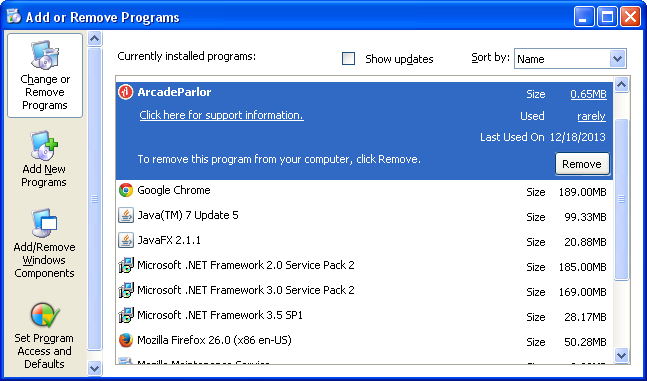
If you are using Windows Vista, Windows 7 or Windows 8, click Uninstall up near the top of that window. When youre done, please close the Control Panel screen.
Remove Arcade Parlor from Google Chrome:
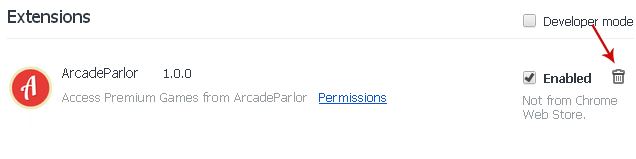
1. Click on Chrome menu button. Go to Tools → Extensions.
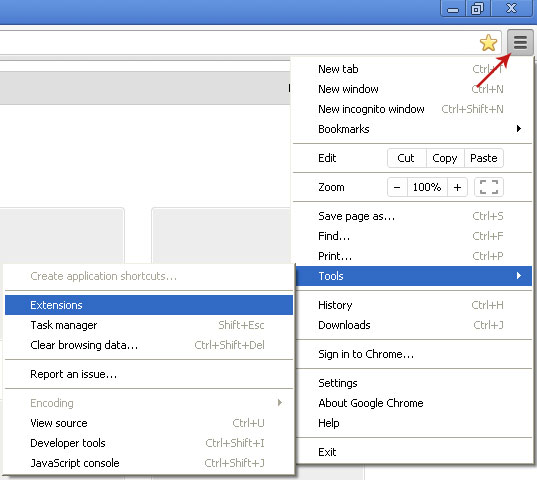
2. Click on the trashcan icon to remove the Arcade Parlor 1.0.0 browser extension.
Remove Arcade Parlor from Mozilla Firefox:
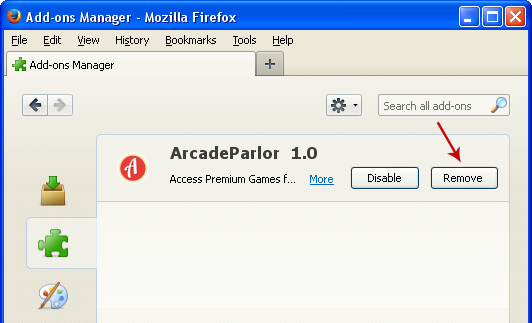
1. Open Mozilla Firefox. Go to Tools → Add-ons.

2. Select Extensions. Click Remove button to the Arcade Parlor 1.0 browser extensions.
Remove Arcade Parlor from Internet Explorer:
1. Open Internet Explorer. Go to Tools → Manage Add-ons. If you have the latest version, simply click on the Settings button.

2. Select Toolbars and Extensions. Click Remove/Disable button to remove the Arcade Parlor browser add-ons.
Read More..
Once installed, this adware will add browser add-ons to IE, Firefox and Chrome. These add-ons can access your data on all websites and access your tab browsing activity. Furthermore, the adware uses scheduled tasks run in the background to check for new updates. Scheduled tasks start every time that you start Windows and use system resources without your knowledge and permission. It may download and install additional adware on your computer.
Its very important that you pay attention to the license agreements and installation screens when installing anything; otherwise you can easily end up with Arcade Parlor and similar adware on your computer. If an installation screen offers you Custom or Advanced installation options, it is a good idea to select these as they will typically disclose what other 3rd party software will also be installed and allow you to opt out of them. If you cant seem to get rid of Arcade Parlor or you have additional questions, please leave a comment below. Good luck and be safe online!
Written by Michael Kaur, http://deletemalware.blogspot.com
Arcade Parlor removal instructions:
1. First of all, download recommended anti-malware software and run a full system scan. It will detect and remove this infection from your computer. You may then follow the manual removal instructions below to remove the leftover traces of this infection. Hopefully you wont have to do that.
2. Remove Arcade Parlor program from your computer using the Add/Remove Programs control panel (Windows XP) or Uninstall a program control panel (Windows 7 and Windows 8).
Go to the Start Menu. Select Control Panel → Add/Remove Programs.
If you are using Windows Vista or Windows 7, select Control Panel → Uninstall a Program.
If you are using Windows 8, simply drag your mouse pointer to the right edge of the screen, select Search from the list and search for "control panel".
Or you can right-click on a bottom left hot corner (formerly known as the Start button) and select Control panel from there.
3. When the Add/Remove Programs or the Uninstall a Program screen is displayed, scroll through the list of currently installed programs and remove Arcade Parlor and any other program you recently installed.
If you are using Windows Vista, Windows 7 or Windows 8, click Uninstall up near the top of that window. When youre done, please close the Control Panel screen.
Remove Arcade Parlor from Google Chrome:
1. Click on Chrome menu button. Go to Tools → Extensions.
2. Click on the trashcan icon to remove the Arcade Parlor 1.0.0 browser extension.
Remove Arcade Parlor from Mozilla Firefox:
1. Open Mozilla Firefox. Go to Tools → Add-ons.
2. Select Extensions. Click Remove button to the Arcade Parlor 1.0 browser extensions.
Remove Arcade Parlor from Internet Explorer:
1. Open Internet Explorer. Go to Tools → Manage Add-ons. If you have the latest version, simply click on the Settings button.
2. Select Toolbars and Extensions. Click Remove/Disable button to remove the Arcade Parlor browser add-ons.


