Tampilkan postingan dengan label remove. Tampilkan semua postingan

How to Remove Arcade Parlor Uninstall Guide

Senin, 21 Juli 2014

Arcade Parlor is an adware program that displays pop-up ads that very often may have nothing to do with the web page content, quick-flash re-directs via commercial web pages and injects in-text ads when visiting certain sites such as Amazon.com, eBay.com, etc. It may display in-text ads on other websites as well. This is the price you pay for supposedly free games you get when you agree to install this adware program on your computer. Of course, its up to you to decide whether you want to keep it or not, but since it displays ads and collects information about your browsing habits I think you would be better off without it. Using this guide you will be able to easily remove all traces of the Arcade Parlor adware from your computer and browser.


Once installed, this adware will add browser add-ons to IE, Firefox and Chrome. These add-ons can access your data on all websites and access your tab browsing activity. Furthermore, the adware uses scheduled tasks run in the background to check for new updates. Scheduled tasks start every time that you start Windows and use system resources without your knowledge and permission. It may download and install additional adware on your computer.


Its very important that you pay attention to the license agreements and installation screens when installing anything; otherwise you can easily end up with Arcade Parlor and similar adware on your computer. If an installation screen offers you Custom or Advanced installation options, it is a good idea to select these as they will typically disclose what other 3rd party software will also be installed and allow you to opt out of them. If you cant seem to get rid of Arcade Parlor or you have additional questions, please leave a comment below. Good luck and be safe online!

Written by Michael Kaur, http://deletemalware.blogspot.com


Arcade Parlor removal instructions:

1. First of all, download recommended anti-malware software and run a full system scan. It will detect and remove this infection from your computer. You may then follow the manual removal instructions below to remove the leftover traces of this infection. Hopefully you wont have to do that.


2. Remove Arcade Parlor program from your computer using the Add/Remove Programs control panel (Windows XP) or Uninstall a program control panel (Windows 7 and Windows 8).

Go to the Start Menu. Select Control Panel → Add/Remove Programs.
If you are using Windows Vista or Windows 7, select Control Panel → Uninstall a Program.


If you are using Windows 8, simply drag your mouse pointer to the right edge of the screen, select Search from the list and search for "control panel".
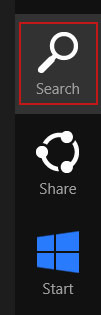


Or you can right-click on a bottom left hot corner (formerly known as the Start button) and select Control panel from there.
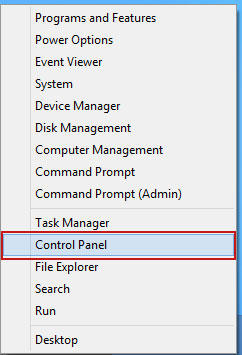


3. When the Add/Remove Programs or the Uninstall a Program screen is displayed, scroll through the list of currently installed programs and remove Arcade Parlor and any other program you recently installed.
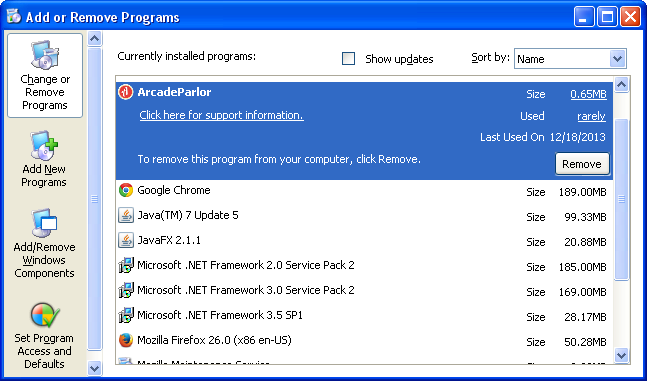


If you are using Windows Vista, Windows 7 or Windows 8, click Uninstall up near the top of that window. When youre done, please close the Control Panel screen.


Remove Arcade Parlor from Google Chrome:

1. Click on Chrome menu button. Go to Tools → Extensions.
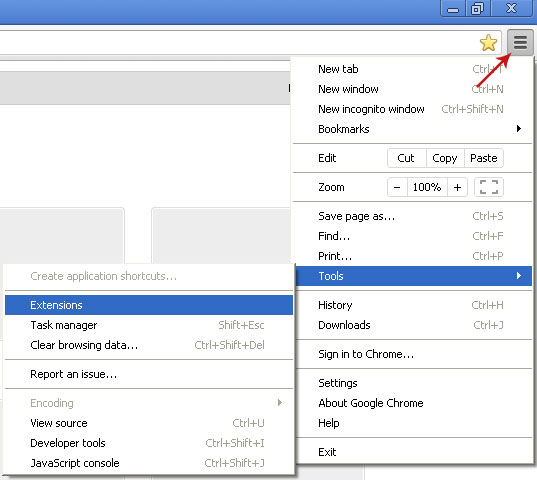


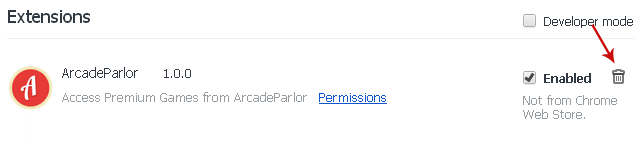
2. Click on the trashcan icon to remove the Arcade Parlor 1.0.0 browser extension.


Remove Arcade Parlor from Mozilla Firefox:

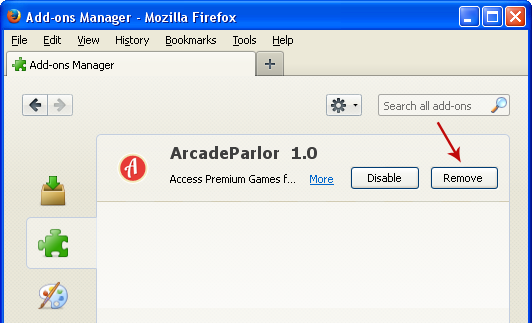
1. Open Mozilla Firefox. Go to Tools → Add-ons.


2. Select Extensions. Click Remove button to the Arcade Parlor 1.0 browser extensions.


Remove Arcade Parlor from Internet Explorer:

1. Open Internet Explorer. Go to Tools → Manage Add-ons. If you have the latest version, simply click on the Settings button.


2. Select Toolbars and Extensions. Click Remove/Disable button to remove the Arcade Parlor browser add-ons.
Read More..

How to Remove Total Protect Uninstall Guide

Kamis, 26 Juni 2014

Total Protect is a fake antivirus program that generate misleading pop-up warnings, reports non-existent security threats on your computer and attempts to trick you in to buying software to remove viruses and other malicious software. This rogue anti-virus product can also slow your computers performance significantly and block legitimate programs or Windows tools. There are literally hundreds of fake AVs on the Internet meant to scare people into installing additional malware on their computers and giving their credit card numbers to cyber criminals. Total Protect is made to look like Microsoft Security Essentials, but its not legitimate. If your computer does become infected by this fake anti-virus program, please scan your computer with anti-malware software. To remove Total Protect from the computer, please follow the removal instructions below.


Total Protect - Professional Antivirus Solution typically appears when you visit a fake online virus scanner or infected website. However, scam artists use social engineering to trick users into installing malicious software as well. If you have stumbled onto a fake security scanner or fake pop-up alert saying that your computer is infected – dont click anything and close your web browsers. Unfortunately, cyber criminals also use drive-by downloads and software exploits to install Total Protect malware and other viruses on the computer even without users knowledge and consent. Thats why you should always enable your anti-virus software and keep it up to date and active.

Fake Total Protect security alerts:


The official website of this rogue antivirus software is totalprotectav.com. Its a mixed up website, some parts are clearly taken from legitimate antivirus vendors websites. For example, they use Bit Defender logo and they also claim that Kaspersky, Panda, Avira and some others are their partners. Thats a complete lie.


Important: never enter your credit card or personal information into a program like Total Protect. If you have already bought this rogue anti-virus program, please contact your credit card company and dispute the charges. Then do a full scan with an up-to-date reputable antivirus software. Coming across such fake antivirus software as Total Protect can be scary, but it actually cant delete your files or spy on your computer unless it comes bundled with other malware but its really uncommon. If your computer is infected with Total Protect, please follow the steps in the removal guide below to remove it from your computer. If you have any questions or need help removing this fraudware, please leave a comment below. Good luck and be safe online!


Total Protect removal instructions:

1. Reboot your computer is "Safe Mode with Networking". As the computer is booting tap the "F8 key" continuously which should bring up the "Windows Advanced Options Menu" as shown below. Use your arrow keys to move to "Safe Mode with Networking" and press Enter key. Read more detailed instructions here: http://www.computerhope.com/issues/chsafe.htm


NOTE: Login as the same user you were previously logged in with in the normal Windows mode.

2. Download free anti-malware software from the list below and run a full system scan.
NOTE: in some cases the rogue program may block anti-malware software. Before saving the selected program onto your computer, you may have to rename the installer to iexplore.exe or winlogon.exe With all of these tools, if running Windows 7 or Vista they MUST be run as administrator. Launch the program and follow the prompts. Dont forget to update the installed program before scanning.

3. New threats appear every day. In order to protect your PC from such (new) infections we strongly recommend you to use ESET Smart Security.


Associated Total Protect files and registry values:

Files:

Windows XP
  • C:Documents and Settings[UserName]Application DataRtlDriver32.exe
Windows Vista/7
  • C:Users[UserName]AppDataRoamingRtlDriver32.exe
Registry values:
  • HKEY_CURRENT_USERSoftwareMicrosoftWindowsCurrentVersionRun "[SET OF RANDOM CHARACTERS].exe"
Share this information with other people:
Read More..

Remove Safehomepage com removal instructions

Minggu, 22 Juni 2014

Safehomepage.com is a browser hijacker that will alter your web browsers settings. It will change your home page and default search engine provider. It can also hijack your web browser shortcut and install additional software onto your computer. So, how do you recover from it if youve been hijacked? Read on as this article is going to take a look at exactly that.


First of all, browser hijacking is an irritating practice whereby malware and unscrupulous websites change your browser settings without your knowledge or permission. In other words the malware or website hijacks or kidnaps your browser. This is just as frustrating as it sounds because what this means is that you will be subjected to one, most or all of the following annoyances:
  • Your browsers home page will have changed from the one that you usually use – for example Google, Yahoo or Bing – to one not of your choosing, in this case safehomepage.com
  • The search engine that you use when browsing the web will suddenly start redirecting you to websites that you have no interest in visiting.
  • Some of the other websites that you visit may also redirect you to different sites
  • Your computer screen will very likely be flooded with a constant stream of pop-up adverts or advertising banners
  • You may have had a strange tool bar installed on your browser which rather than adding any extra functions is annoying and unusable
  • Your bookmarks or favorites folders may suddenly be populated with dozens, if not hundreds, of URLs to websites that you have never even visited, let alone saved as a favorite.
If your home page of choice has been hijacked and is forcing you to use a home page against your will then you naturally will want to resolve the issue. But how do you do that? First of all it’s useful to know how browser hijacking takes place.

Safehomepage.com will find its way on to your computer system along with freeware and fake installers. Fake installers are distributed in various ways. If you got a notification from a web page saying that your Flash player is outdated then you probably visited a bogus site promoting fake installers, read more here. This browser hijacker is also promoted on various software download sites. Not the most popular ones but still with enough traffic to infection thousands of PCs in different countries. It is usually presented as an offer before the actual download begins.

This would be a good time to say that if you don’t have anti-virus, anti-spyware or another type of security software installed on your PC then you should do this as a matter of urgency. Having a reputable security program on your PC is your first and best line of defense against being infected by any of the numerous types of malware that are out there, not just browser hijackers.

So, you’ve run your anti-malware or other security program a couple of times and rebooted your PC or laptop but your home page and search engine are still redirecting you to safehomepage.com? This means that the problem could have been caused by an application which was installed without your knowledge or permission and that is hidden deep somewhere within your computer’s system. Please follow the removal instructions below, this hopefully will help you get rid of the hijack and restore your computer.

If you’re still having trouble, don’t panic – browser hijackers, including safehomepage.com, are designed to be as difficult as possible to find and uninstall so please leave a comment below and I will try to to help you. Good luck and be safe online!


Safehomepage.com removal instructions:

1. First of all, download recommended anti-malware software and run a full system scan. It will detect and remove this infection from your computer. You may then follow the manual removal instructions below to remove the leftover traces of this browser hijacker. Hopefully you wont have to do that.

2. Uninstall Safehomepage.com and related programs from your computer using the Add/Remove Programs control panel (Windows XP) or Uninstall a program control panel (Windows 7 and Windows 8).

Go to the Start Menu. Select Control Panel → Add/Remove Programs.
If you are using Windows Vista or Windows 7, select Control Panel → Uninstall a Program.


If you are using Windows 8, simply drag your mouse pointer to the right edge of the screen, select Search from the list and search for "control panel".


Or you can right-click on a bottom left hot corner (formerly known as the Start button) and select Control panel from there.


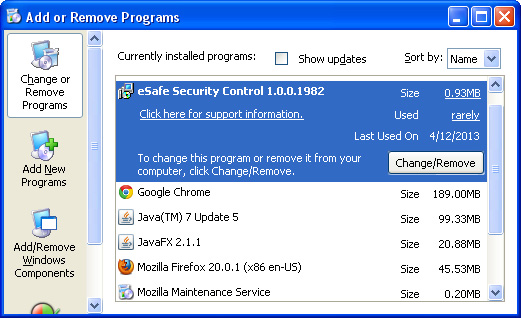
3. When the Add/Remove Programs or the Uninstall a Program screen is displayed, scroll through the list of currently installed programs and remove QType, eSave Security Control, Safehomepage, New Tabs Uninstall, Desk 365, BrowserProtect and any other recently installed application. As I said earlier, this application is rarely listed as Safehomepage in the currently installed programs list. So, either look for applications mentioned here or try to remember what software you installed recently. Its probably the culprit.


Simply select the application and click Remove. If you are using Windows Vista, Windows 7 or Windows 8, click Uninstall up near the top of that window. When youre done, please close the Control Panel screen.


Remove Safehomepage.com from Google Chrome:

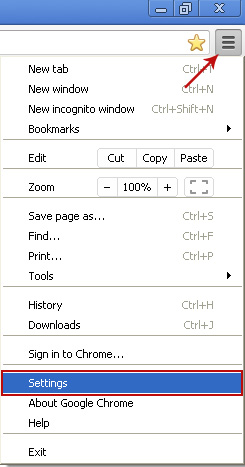
1. Click on Customize and control Google Chrome icon. Select Settings.


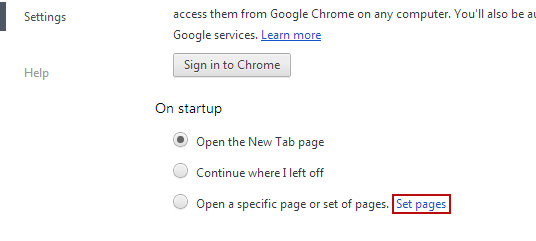
2. Click Set pages under the On startup.


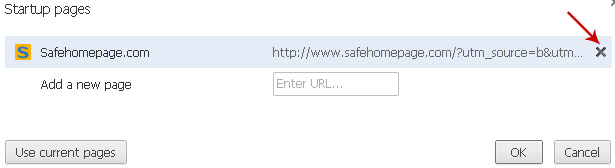
Remove safehomepage.com by clicking the "X" mark as shown in the image below.


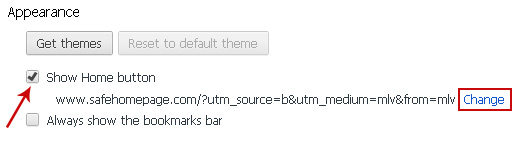
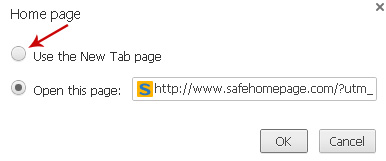
3. Click Show Home button under Appearance. Then click Change.


Select Use the New Tab page and click OK to save changes.


4. Click Manager search engines button under Search.

Select Google or any other search engine you like from the list and make it your default search engine provider.

Select Safehomepage.com from the list and remove it by clicking the "X" mark as shown in the image below.

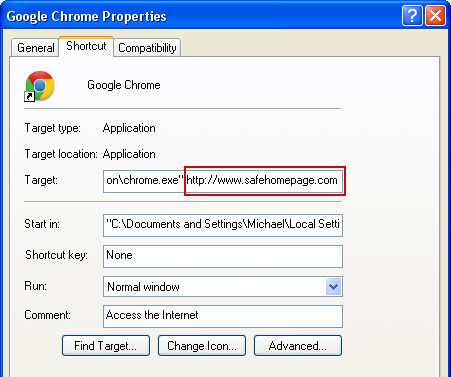
5. Right-click the Google Chrome shortcut you are using to open your web browser and select Properties.

6. Select Shortcut tab and remove "http://www.safehomepage.com...." from the Target field and click OK to save changes. Basically, there should be only the path to Chrome executable file. Nothing more.


Remove Safehomepage.com from Mozilla Firefox:

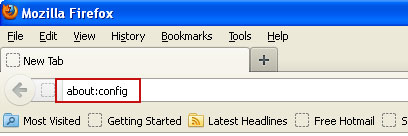
1. In the URL address bar, type about:config and hit Enter.


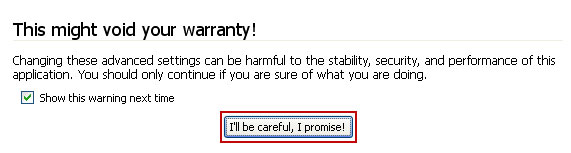
Click Ill be careful, I promise! to continue.


In the search filter at the top, type: Safehomepage

Now, you should see all the preferences that were changed by safehomepage.com. Right-click on the preference and select Reset to restore default value. Reset all found preferences!

You can also use the Reset Firefox feature.

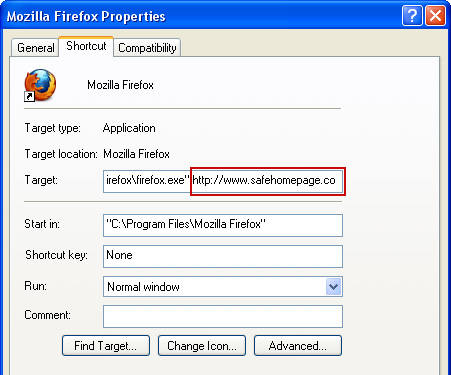
2. Right-click the Mozilla Firefox shortcut you are using to open your web browser and select Properties.

3. Select Shortcut tab and remove "http://www.safehomepage...." from the Target field and click OK to save changes. Basically, there should be only the path to Firefox executable file.


Remove Safehomepage.com in Internet Explorer:

1. Open Internet Explorer. Go to Tools → Manage Add-ons.


2. Select Search Providers. First of all, choose Live Search search engine and make it your default web search provider (Set as default).

3. Select Safehomepage.com and click Remove to remove it. Close the window.

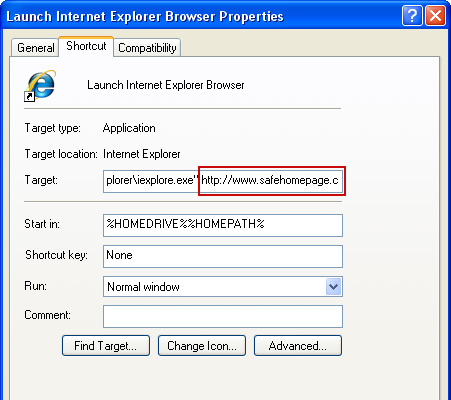
4. Right-click the Internet Explorer shortcut you are using to open your web browser and select Properties.

5. Select Shortcut tab and remove "http://www.safehomepage.com...." from the Target field and click OK to save changes. Basically, there should be only the path to Internet Explorer executable file.


6. Finally, go to Tools → Internet Options and restore your home page to default. Thats it!
Read More..

Remove Snap do

Sabtu, 15 Maret 2014

A concerned reader asks: Snap.do has hijacked my web browser. Is it safe? How do I get rid of it? Heres what you need to know about this so-called Snap.do hijacker malware.

Snap.do is a browser help object. Authors of this web browser plug-in say that they want to enhance your web browser and simplify the way you search the web, share favorite information, work or even play. Sounds good, right? It seems that they really care and want to help you. But hold your horses, Jack! :) Things are often not what they seem to be and thats particularly true for snap.do web browser hijacker. It comes with a cost and the main question is: are you willing to pay the price?


First of all, snap.do and some other Resoft products are considered to be potentially harmful or even malicious, not to mention how annoying they can be. For example, TrendMicro, an antivirus company, classifies snap.do toolbar as spyware and web browser hijacker and they have a good reason for that. According to Resoft privacy policy, their products, including snap.do collect the following information:
1. The Internet domain and IP address from which you access the Resoft Products;
2. Screen resolution of your monitor;
3. The date and time you access the Resoft Products;
4. The page you are visiting with the Resoft Products
5. If you linked to a Resoft website from another referring website, the address of that website.
By using the Resoft Products, you are consenting to have your personal data transferred to and processed both within and without the United States of America
Typically, snap.do installs itself as a web browser toolbar (BHO) but it may be installed with additional functionalities as well. This browser helper object can be downloaded from its official website and may also arrive bundled with other software, usually freeware. We havent seen any questionable routines or drive-by downloads that might be related to malicious software and snap.do. Whats interesting, though, installers downloaded from free video streaming sites and other shady or rogue websites are very aggressive and even if users made sure that the check boxes asking to install add-ons were disabled, snap.do virus was still installed on their computers.

Snap.do works on all major web browsers: Google Chrome, Mozilla Firefox and Internet Explorer. It doesnt work on Windows XP. Installer simply fails to initialize properly. So, XP users are safe. Once installed, Snap.do hijacker modified various web browsers settings. It changes home page to http://feed.helperbar.com and adds additional search engine provider which redirects users to http://search.snap.do. Each time user opens a new tab the web browser goes to http://search.snap.do instead of blank page, Google or any other website of your choice.

Snap.do removal can be a really challenging task, especially when it comes bundled with other software. Even though, snap.do authors ensure that it can be uninstall from a computer very easily, using the programs own normal uninstallation process, but thats not quite true. It leaves so many modified web browser settings and Windows registry keys and you cant ignore them because they simply change the way you use your web browser. For example, even if you removed Snap.do via Control Panel, modified search engine settings remain untouched. As a result, searching directly from web browser address bar returns results from http://search.snap.do rather than Google. By the way, the plug-in modifies Windows registry and enables its automatic execution at every system start-up. What is more, snap.do infection may cause your web browser to stop working.

To remove snap.do from your computer, please follow the removal instructions below. It will show you how to remove this browser hijacker in Mozilla Firefox, Google Chrome and Internet Explorer. Make sure to uninstall snap.do via Control Panel first and only then proceed to the next steps, unless of course its not listed there. Have you been hijacked by Snap.do? Post your comment or question below. Good luck and be save online!


Snap.do removal instructions:

1. First of all, download recommended anti-malware software and run a full system scan. It will detect and remove this infection from your computer. You may then follow the manual removal instructions below to remove the leftover traces of this browser hijacker. Hopefully you wont have to do that.


2. Go to the Start Menu. Select Control Panel → Uninstall a Program.


3. Search for Snap.do in the list. Select the program and click Uninstall button to uninstall it.


It will prompt you to close all web browsers before uninstalling Snap.do. Please click Yes to continue.

Then, it will ask you if you want to change your home page and default search provider to the old settings. Please click Yes.


Remove Snap.do in Google Chrome:

1. Click on Customize and control Google Chrome icon. Go to Tools → Settings.


2. Click Set pages under the On startup.


Remove feed.snap.do by clicking the "X" mark as shown in the image below.


3. Click Show Home button under Appearance. Then click Change.


Enter http://www.google.com instead of feed.snap.do and click OK to save changes.


4. Click Manager search engines button under Search.


Select Google or any other search engine you like from the list and make it your default search engine provider.


Select Web (search.snap.do) from the list and remove it by clicking the "X" mark as shown in the image below.


Thats it!


Remove Snap.do in Mozilla Firefox:

1. Open Mozilla Firefox. Go to Tools → Add-ons.


2. Select Extensions. Remove Snap.do extension. Close the window.


3. Click on the Snap.do search icon as shown in the image below and select Manage Search Engines....


4. Choose Web Search (Snap.do) from the list and click Remove to remove it. Click OK to save changes.


5. Go to Tools → Options. Under the General tab reset the startup homepage or change it to google.com, etc.


6. In the URL address bar, type about:config and hit Enter.


Click Ill be careful, I promise! to continue.


In the filter at the top, type: snap.do


Now, you should see all the preferences that were changed by Snap.do extension. Right-click on the preference and select Reset to restore default value. Reset all found preferences!


Thats it!


Remove Snap.do in Internet Explorer:

1. Open Internet Explorer. Go to Tools → Manage Add-ons.


2. Select Search Providers. First of all, choose Bing or Live Search search engine and make it your default web search provider (Set as default).


3. Select Web Search (search.snap.do) and click Remove to remove it. Close the window.


4. Go to Tools → Internet Options. Select General tab and click Use default button or enter your own website, e.g. google.com instead of http://feed.snap.do. Click OK to save the changes. And thats about it for Internet Explorer.


If you did everything correctly, the Snap.do search hijacker should be completely uninstalled from your computer. However, if it still shows up, you will have to modify or remove certain Windows registry keys. They are listed below.

First, you have to open Windows Registry Editor. Simply search for regedit and run it as administrator.

Once there, navigate to, and delete the following Windows registry keys:
  • HKEY_CURRENT_USERSoftwareMicrosoftInternet ExplorerMain → delete "Search Bar"
  • HKEY_CURRENT_USERSoftwareMicrosoftInternet ExplorerSearch → delete "Default_Search_URL"
  • HKEY_CURRENT_USERSoftwareMicrosoftInternet ExplorerSearch → delete "SearchAssistant"
  • HKEY_LOCAL_MACHINESOFTWAREWow6432NodeMicrosoftInternet ExplorerSearchUrl → delete "Default"
Then, navigate to, and modify the following Windows registry keys:

HKEY_CURRENT_USERSoftwareMicrosoftInternet ExplorerMain

Right-click the "Search Page" key and select Modify. Change key value data to: http://go.microsoft.com/fwlink/?LinkId=54896

HKEY_LOCAL_MACHINESOFTWAREWow6432NodeMicrosoftInternet ExplorerSearchScopes{006ee092-9658-4fd6-bd8e-a21a348e59f5}

Right-click the "URL" key and select Modify. Change key value data to:
http://www.bing.com/search?q={searchTerms}

Share this information:
Read More..